

How strong are your e-commerce ops? Take the 2-min scorecard.
Score Your OpsYour AI chat can now open your store.
On 28 October 2026 Shopify announced connectors that let merchants work with products, inventory, orders and performance from inside the AI agents they already use. That sounds like a time saver. It is also a new way for a wrong price or a bad stock count to reach customers without anyone looking. This guide covers what a Shopify AI connector is, what it can and cannot change, and a read, check, approve routine your ops team can run this week.
What Is a Shopify AI Connector?
A Shopify AI connector is an official integration that links your store to a third-party AI chat tool, so you can ask questions and manage products, inventory and orders from that chat. Shopify's Fall '26 Edition says connectors work with nine agents: ChatGPT, Claude, Claude Duet, Microsoft Copilot, Google Gemini, Grok, Grok Bot, Muse and Perplexity.
The AI tool sits outside Shopify. You install the integration from the AI tool, not from the Shopify App Store. Shopify's authorization guide says to use the official integration for each tool and not to create an API access token or build your own connection.
In Shopify's own words, the supported tasks fall into four groups: analyzing performance, managing the catalog, tracking operations such as stock levels and incoming orders, and launching new storefront previews. This guide ignores the last one. If you already run a live store, the first three are the ones that can hurt you.
Here is the catch. A connector is a pair of hands, not a safety system. It does what you ask, inside the access you grant. What it does next is up to your process.
How Is a Shopify AI Connector Different From Sidekick?
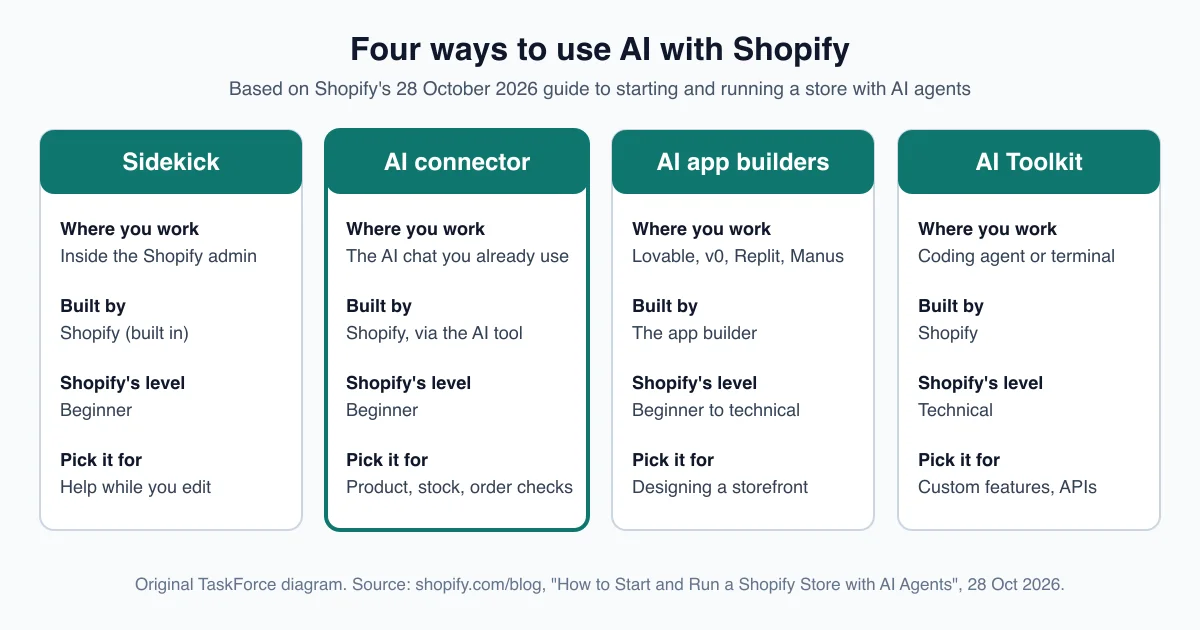
Sidekick is Shopify's built-in assistant inside the admin, while a connector brings Shopify into an outside AI chat such as ChatGPT or Claude. In its 28 October 2026 guide, Shopify describes four ways in: Sidekick, AI connectors, AI app builders and the Shopify AI Toolkit.
Shopify rates Sidekick and connectors as beginner level. App builders range from beginner to technical, and the AI Toolkit is technical.
The practical difference is where your team works. Sidekick lives in the admin and, per the Fall '26 announcement, asks the merchant to approve its changes. A connector lives in a chat that may also hold your emails, spreadsheets and half-finished plans, which is useful and also a reason to be careful about what you paste in.
Pick by task, not by hype:
- Sidekick: help while you edit a product, theme or report in the admin.
- Connector: ask cross-cutting questions from the chat you already use, such as "which products are low on stock?"
- AI Toolkit: build custom features or call Shopify APIs from a coding agent.
Shopify's own guide says to pick the option that fits the task in front of you. One team can use all of them. This page stays on the connector.
Which AI Tools Can You Connect to Shopify?
Shopify's Help Center lists seven AI tool families: ChatGPT, Claude, Gemini, Grok, Perplexity, Muse and Microsoft Copilot. The Help Center overview says all but Muse can manage a store you own, and Muse can connect an existing store.
The table below summarizes what the Help Center says each tool can do for a store you already own. I have left out the "create a store before you sign up" feature, since it does not apply to a live store.
| AI tool | Manage an existing store | Notes from Shopify's Help Center |
|---|---|---|
| ChatGPT | Yes | Can also source Shopify Collective products to import |
| Claude | Yes | Can also source Shopify Collective products to import |
| Gemini | Yes | Works alongside Google Workspace, per Shopify's guide |
| Grok | Yes | Works in Grok and in Grok Bot |
| Perplexity | Yes | Manage a store you own |
| Muse | Connect an existing store | Can also send you through Shopify signup to link a new store |
| Microsoft Copilot | Yes | Works from Copilot Cowork and Microsoft 365 Copilot Chat |
One gap to know about. The announcement counts nine agents, including Claude Duet. I did not find a separate Help Center page for Claude Duet, so check Shopify's list for your tool before you plan around it.
Also note one more Shopify rule: you can connect one store at a time, even when your stores share an organization. A team with several Shopify stores will switch stores by asking the AI to reconnect, then start a new conversation. If that is you, see our guide to managing multiple Shopify stores.
What Can a Shopify AI Connector Change in Your Store?
A connected AI tool can update product listings, change prices and edit an unpublished theme, but it cannot issue refunds, cancel or capture orders, or edit your live theme. Shopify's considerations page also says the tool can only read data unless you approve write access.
This is the most important section on the page, so here is the full picture.
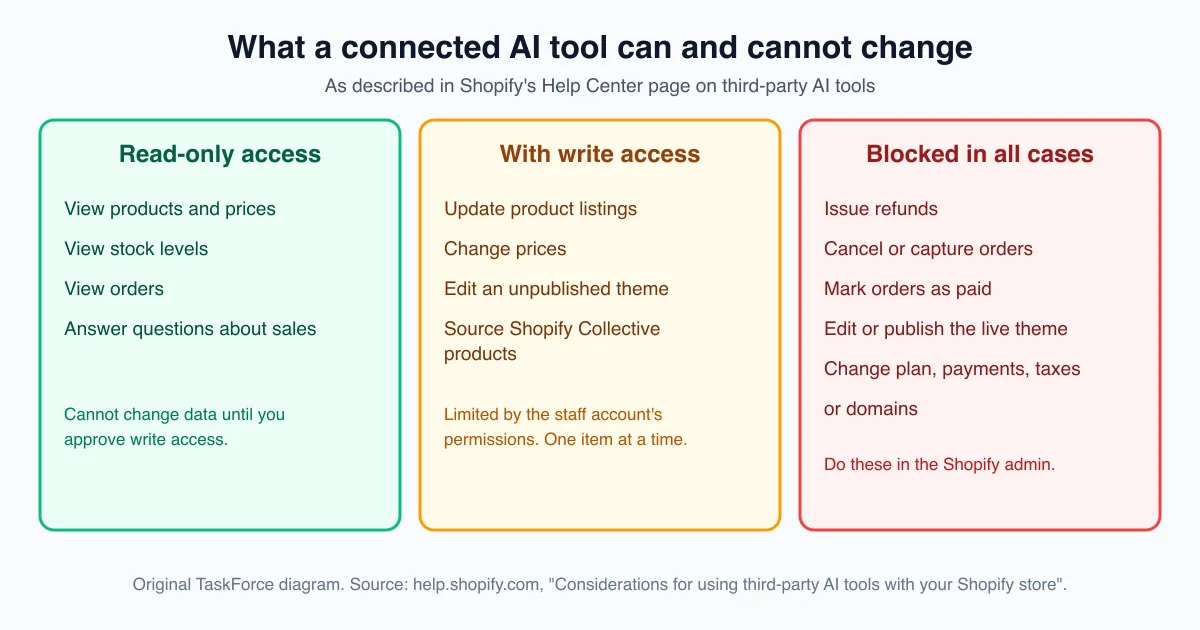
Shopify lists the limits this way:
- Live theme: the tool can edit an unpublished theme but cannot edit your live theme, publish a theme or delete one.
- Settings: it cannot change your plan, payments, taxes or domains.
- Money: it cannot issue refunds, cancel or capture orders, mark orders as paid, process returns, or create and adjust gift cards. These are blocked even when you approve write access.
- Batches: it changes items one at a time, so a large batch can stop partway and some actions cover only a limited number of items.
- Staff permissions: the tool works through a staff account, so it cannot do more than that account can.
Read that batch rule twice. A price change that stops halfway leaves half your catalog on the old price and half on the new one. That is exactly the kind of drift an ops team hates, because nothing looks broken until a customer notices.
Shopify also states who is accountable. If an AI tool makes an incorrect change, you are responsible for that change, and Shopify does not review or approve actions the tool takes on your behalf.
Does this sound like your team? Many multi-channel teams already lose hours to price and stock drift between channels. Score your ops in 2 minutes with the free ops scorecard. No signup required.
How Do You Set Up a Shopify AI Connector Safely?
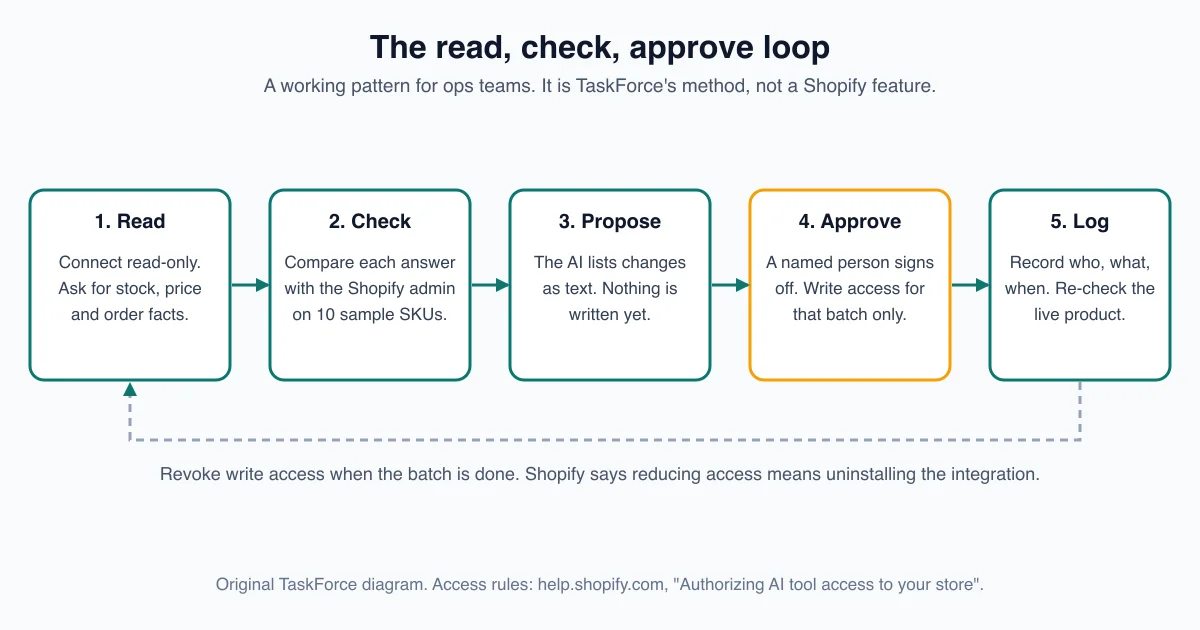
Set up a connector with read-only access first, using a staff account that has the narrowest permissions the job needs. Shopify says each connection takes two steps with separate confirmations, and that reducing the access you approved means uninstalling the integration, so start small.
Shopify's authorization guide describes the flow. You install the official integration from the AI tool, you are redirected to the Shopify admin to sign in, and you review the access level the tool requests. Some tools prompt you the first time you ask for something that needs your store.
Use this order:
- Choose the account. Decide which staff account the tool acts through. Shopify says users are limited by their own permissions, so a person who can only read product data cannot give the tool the power to edit it.
- Decline what you do not need. If the tool asks for write access and you only want reports, say no. Shopify notes you can decline the request.
- Read the AI company's terms. Shopify says data you share is processed by the third-party AI tool company under its own terms and privacy policy, and that you are responsible for meeting your obligations to customers under laws such as the GDPR and the CCPA.
- Connect. Approve, then ask a simple read question to confirm it works.
- Write down who owns the connection. Name one person who can revoke it.
If your team shares one login across tools, fix that first. A connector acting through a shared owner account inherits everything that account can do.
How Do You Test a Shopify AI Connector Before Trusting It?
Test the connector on a small sample of products and compare every answer with your Shopify admin before you grant write access. A spot check of 10 SKUs shows whether the AI reads your stock, prices and orders correctly. The 10-SKU size is our working rule, not a Shopify figure.
Shopify's own help text warns that AI outputs can contain errors and that you should review any information or action you ask the tool to take. A test turns that warning into a habit.
Choose 10 SKUs that cover the awkward cases: one with variants, one at zero stock, one on sale, one that is bundled, one that is hidden from the online store. Then run three kinds of prompt.
Read prompts. Ask for facts you can verify in seconds:
- "List the SKUs under five units of stock."
- "What is the current price of [SKU]?"
- "Show orders from the last 24 hours that are not fulfilled."
Compare prompts. Check each answer against the admin. A single mismatch is a finding. Stop and find out whether the tool read the wrong variant, the wrong location or stale data before you go further.
Proposal prompts. Ask the AI to list the changes it would make, as text, without making them: "Show me the 12 titles you would change and the new title for each." Read the list. Reject anything you would not do by hand.
Only after the read and compare steps match should you consider write access, and then for one small, named batch.
If you have a spare store with test products, run the whole test there first. That is our advice, not a Shopify requirement. A throwaway store is the safest place to learn how your chosen tool behaves.
How Do You Keep an Audit Trail of AI Changes?
Keep a change log with one row per AI request: who asked, what access was used, who approved, and what you saw in the Shopify admin afterwards. Shopify says you must monitor your store for changes a connected AI tool makes, and that its actions are not reviewed or approved by Shopify.
That duty to monitor is in Shopify's considerations page. It is easy to agree with and easy to skip, so make it a form.
The mock-up below shows the columns we suggest. The four example rows are invented to show the pattern; they are not from a real store.
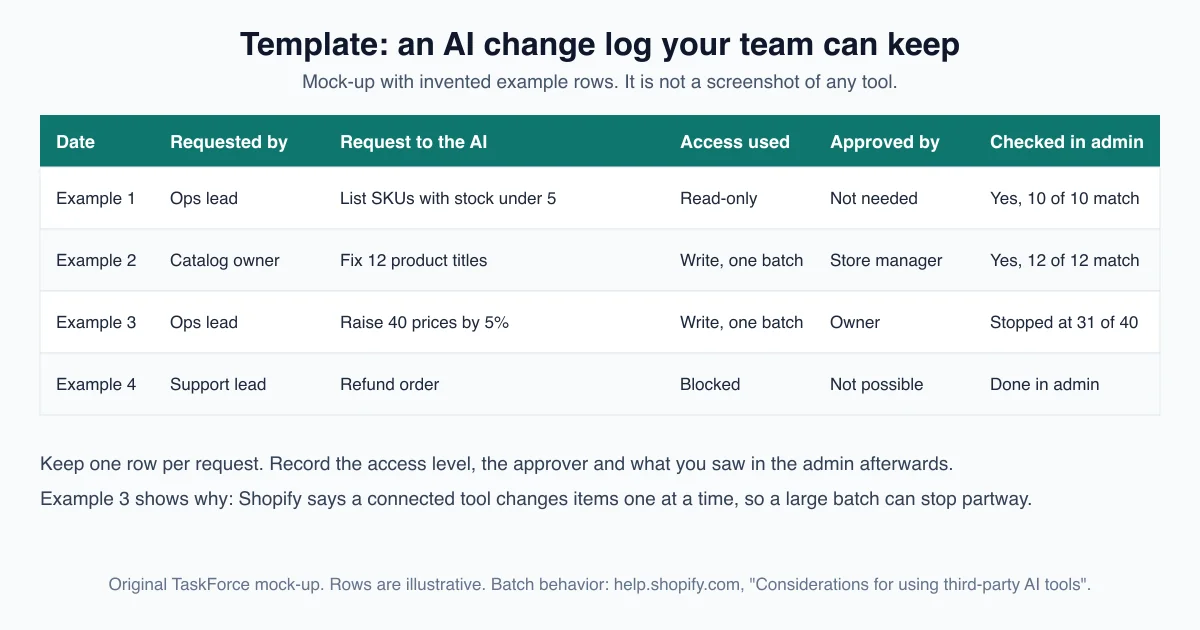
Three habits make the log useful:
- Name an approver for every write. Not "the team". A person. If nobody will put a name on the change, do not run it.
- Check the live product, not the chat. The AI may say "done". The only proof is the product page and the admin.
- Time-box write access. Grant it for one batch. When the batch is done and checked, revoke it. Remember that Shopify says reducing access means uninstalling the integration, so schedule the reinstall as part of the next batch.
Spreadsheets work for this, and so does a shared document. The important thing is that the log lives outside the AI chat. A chat history is easy to lose, hard to search and not an approval record. A team that also keeps daily checks can attach the log to its daily operations checklist.
What Should Multi-Channel Sellers Watch For?
A Shopify connector only sees Shopify, so it cannot tell you when Shopee, Lazada or TikTok Shop disagree with it. Shopify's announcement describes access to Shopify products, inventory, orders and performance, and says Shopify remains the commerce foundation behind them.
That matters if you sell on four channels. Say you ask the AI to raise 40 prices by 5% on Shopify. If it stops at 31, you have one drift problem. If the other channels are still on the old price, you have two. Neither the connector nor the chat will tell you the Shopee price is now lower than your own store.
Here is how we would split the work:
- Use the connector for Shopify-side reads. Stock questions, product lists and order checks.
- Keep one source of truth for catalog data. Our catalog management guide covers how to map attributes across channels so a change made in one place does not leave the others behind.
- Check the cross-channel gap yourself or with an audit. TaskForce is a separate operations layer that runs listing, stock, pricing, content drift, seller health and config audits across connected channels. It does not provide the Shopify connector, and this guide does not assume you use it.
- Treat connectors as one automation among several. See what to automate first before you hand more tasks to an AI chat.
There is one more thing to watch: knowledge. The Fall '26 announcement also describes a knowledge base at Sales channels > Agentic, where merchants review and publish facts that agents get about their store, such as return windows and shipping destinations. That is for shopper-facing agents, not for your ops connector, but the habit is the same. Review what an agent will say about your business before it says it.
Does This Replace Your Ops Process?
No: a connector gives your team faster access to Shopify data, but approvals, evidence and cross-channel checks still have to come from your process. Shopify's help page says some changes can only be made in the Shopify admin and that you remain responsible for monitoring.
We have not run a live connector against a client store, so this guide rests on Shopify's published documentation, not on our own results. If you test one, treat your own 10-SKU results as the evidence that counts.
Here is the short version of the routine:
- Connect read-only, through the narrowest staff account.
- Test on 10 SKUs and compare with the admin.
- Ask for proposals as text.
- Approve by name, for one batch.
- Log it, check the live product, then revoke write access.
That is a few extra minutes per change. Compared with a price error found by a customer, it is cheap. For the wider picture of how ops teams run these checks every day, read our ecommerce operations guide.
Frequently Asked Questions
What is a Shopify AI connector?
A Shopify AI connector is an official integration that lets an AI chat tool such as ChatGPT or Claude read and manage your Shopify store. Shopify's October 2026 announcement says connectors work with nine agents. The tool acts within the data access you approve and your staff account's permissions.
Can a Shopify AI connector change prices and products?
Yes, but only if you approve write access. Shopify says a connected tool can update product listings and change prices. It cannot issue refunds, cancel or capture orders, mark orders as paid, or edit your live theme. It changes items one at a time, so a large batch can stop partway.
Is a Shopify AI connector the same as Sidekick?
No. Sidekick is Shopify's built-in AI assistant inside the admin. A connector brings Shopify into an outside AI chat such as ChatGPT, Claude or Gemini. Shopify's October 2026 guide lists them as two of four ways to use AI with a store, alongside AI app builders and the AI Toolkit.
How do I stop an AI connector from changing my store?
Revoke its access by uninstalling the integration. Shopify says you can revoke an AI tool's access at any time, and that reducing the access scope you approved requires uninstalling. Before that, start read-only, decline write access you do not need, and limit the staff account the tool acts through.
Who is responsible if an AI connector makes a wrong change?
You are. Shopify's Help Center says that if a connected AI tool makes an incorrect change, you are responsible for it, and that Shopify does not review or approve the actions the tool takes. You also remain responsible for monitoring your store for changes and for the data you share.
Keep Reading
Find out what your operation is missing
Answer 10 questions. Get your ops score. Takes 2 minutes.
Take the Scorecard